

Visualize your Minecraft world instantly with our free browser-based seed map. Find rare biomes, structures, and spawn points easily without downloading mods. Supports Java Edition.
Minecraft Seed Map: Find Biomes & Structures
Minecraft Seed Map: Find Biomes & Structures
Loading seed map
engine…
Explore your world with a Minecraft seed map
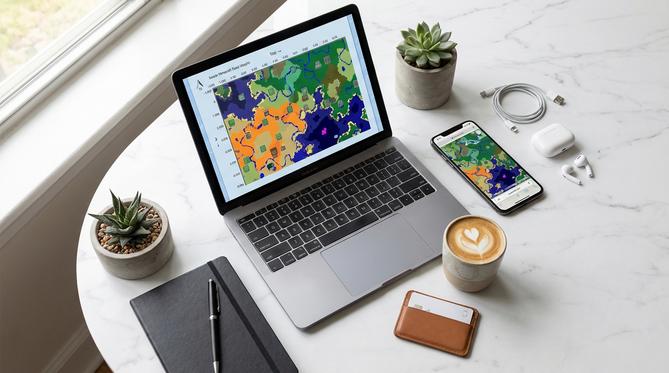
You don’t need to wander aimlessly through your game to find the perfect spot. A Minecraft seed map helps you see your world layout instantly, right from your browser. Whether you are looking for a specific biome, a rare structure, or just a safe place to build your base, this tool gives you the oversight you need. It works for Java Edition versions ranging from Beta 1.7 all the way up to 1.21.3, making it a versatile companion for your gaming sessions.
Summary
You can use the embedded tool on this page to visualize your Minecraft world without downloading any software. It is a safe, browser-based viewer that reads your unique seed code to generate a map of biomes and structures. You will find it useful for planning builds, locating resources, and avoiding dangerous areas. It supports almost all Java Edition versions and protects your privacy by running entirely on your own device.
TL;DR
- You can view your world map instantly without installing mods.
- You can find rare biomes and structures like Ancient Cities and Villages.
- You can use this for Java Edition versions Beta 1.7 through 1.21.3.
- You stay safe because the tool runs 100% in your browser with no data upload.
🗺️ Table of Contents
What is a Minecraft seed map?
A Minecraft seed map is a tool that visualizes the world generation code of your game to show you exactly where biomes and structures are located. Every Minecraft world is created from a unique string of numbers known as a “seed.” When you input this seed into a map viewer, it replicates the game’s generation logic to create a 2D map of your world.
You need a seed map if you want to save time and plan your gameplay effectively. Instead of running thousands of blocks to find a Cherry Grove or digging randomly for hours to find an Ancient City, a seed map shows you exactly where to go. It is the most efficient way to scout a world before you even chop your first tree.
How to use the embedded seed map tool
Using the Minecraft seed map viewer on this page is straightforward. You do not need to install any mods or upload any files. Follow these simple steps to get started:
- Enter your seed: In the text box labeled “Seed,” type the number or text string of your world. If you use a word (like “Recharge”), the tool automatically converts it to the numerical seed.
- Select your version: Use the dropdown menu to choose your Minecraft version. The default is set to the latest release (1.21), but you can change this if you are playing on an older server.
- Choose dimension: Click the tabs at the top to switch between the Overworld, Nether, and The End.
- Navigate: Use your mouse wheel to zoom in and out. Click and drag to move around the map, or use the WASD keys on your keyboard to pan.
Finding specific structures and biomes
The true power of a Minecraft seed map lies in its ability to filter the world for exactly what you need. The viewer allows you to toggle specific icons on and off so you can focus on your goals.
🏰 Structures
The “Structures” tab lets you locate over 25 different types of generated buildings. You can instantly find:
- Villages: Essential for trading and food.
- Strongholds: Required to reach The End.
- Ancient Cities: Find swift sneak enchantments in the Deep Dark.
- Trial Chambers: Locate the new combat challenges in 1.21.
- Woodland Mansions: Find rare loot and Totems of Undying.
🌲 Biomes
The map renders biomes in real-time with accurate colors. You can use the search bar to highlight specific areas:
- Cherry Grove: Find pink petals and unique wood types.
- Pale Garden: Locate the eerie new biome.
- Mushroom Fields: The safest place to build (no hostile mobs spawn here).
- Badlands: Gather terracotta and gold easily.
If you are looking for a specific start, you can use the search feature to type “Mushroom Fields” or “Village,” and the map will highlight the nearest coordinates to your spawn point.
Advanced features: Slime chunks, Nether, and End maps
For technical players, this tool offers more than just a pretty map. It provides data that helps you build efficient farms and travel networks.
- Slime Chunks
- You can toggle a green grid overlay on the map. These squares represent “Slime Chunks,” the specific areas where Slimes spawn underground. This is vital for building efficient slime farms.
- Dimension Mapping
- The map isn’t limited to the surface. Switch to the Nether tab to find Fortresses and Bastion Remnants for blaze rods and gold. Switch to The End tab to map out End Cities and find Elytra wings.
- Coordinate Conversion
- When you hover over a spot in the Overworld, the tool displays the corresponding Nether coordinates (divided by 8). This makes linking portals for fast travel incredibly simple.
Why use this specific map viewer?
There are several map tools available, but this specific viewer is designed for speed and safety. Unlike downloadable programs that might contain malware, this runs entirely in your browser.
🔒
Safe & Private
It runs 100% client-side using WebAssembly. Your seed data is never sent to a server. This is crucial for keeping your gaming data safe.
⚡
Fast Performance
The tool uses multi-threading to load terrain instantly. You don’t have to wait for large images to download.
✅
Simple to Use
With a clean interface, dark mode support, and no sign-up requirement, you can get the info you need and get back to gaming.
Supported Minecraft versions
Minecraft updates frequently, and your tools need to keep up. This seed map supports a vast range of Java Edition versions.
Current Support: Java Beta 1.7 through Release 1.21.3.
The tool is regularly updated to include new generation features. When the Pale Garden or Trial Chambers were introduced, they were added to the viewer immediately. Whether you are playing the latest snapshot or revisiting an old version for nostalgia, the map generation will be accurate.
Frequently Asked Questions (FAQ)
How do I find my seed in Minecraft?
If you are already in a world, press T to open the chat window. Type the command /seed and press Enter. The game will display a green number. Click it to copy it to your clipboard, then paste it into the viewer on this page.
Is using a seed map considered cheating?
In single-player survival, it is entirely your choice. Many players find it enhances the fun by removing tedious searching. However, on multiplayer servers, you should always check the rules. Some admins consider it an unfair advantage. Parents setting up servers for kids often use these maps to ensure parental controls over where spawn points are located relative to dangerous biomes.
Does this map work for Bedrock Edition or Pocket Edition?
This tool is primarily built for Java Edition. However, recent Minecraft updates have introduced “seed parity.” This means the terrain (hills, rivers, biomes) is almost identical between Java and Bedrock (including Pocket Edition/consoles). However, structure locations (like Villages or Temples) will likely be different. If you play on Bedrock, use the map for terrain, but do not rely on it for finding structures.
How accurate are Minecraft seed maps?
This map is extremely accurate. It uses the “cubiomes” library, which replicates the exact C code Minecraft uses to generate worlds. For supported versions, what you see on the map is exactly what you will find in the game.
Can I find diamonds with this map?
You cannot see individual diamond ore blocks with this viewer. However, you can use it to find the best conditions for mining. Use the map to locate “Deep Dark” biomes or massive caves, which expose more surface area at deep levels where diamonds are most likely to spawn.
How do I teleport to coordinates I find on the map?
When you find a location you like on the map, you can double-click it. This will copy the precise coordinates to your clipboard in the format of a teleport command (e.g., /tp @s 100 80 -250). You can paste this directly into your game chat to travel there instantly.
Ready to upgrade your Minecraft experience?
Finding the perfect biome is just the start. Whether you need Minecoins for the Marketplace or a prepaid card to gift a friend their own Java account, we make it simple.
Written by
Conor Byrne


