

Learn how to check data usage on your iPhone with our step-by-step guide. Track cellular consumption, identify data-hungry apps, and reset statistics to accurately monitor your monthly plan and avoid overage fees.
How to Check Data Usage on iPhone: A Step-by-Step Guide
How to Check Data Usage on iPhone: A Step-by-Step Guide
How to Check Data Usage on iPhone (Guide for All Models)
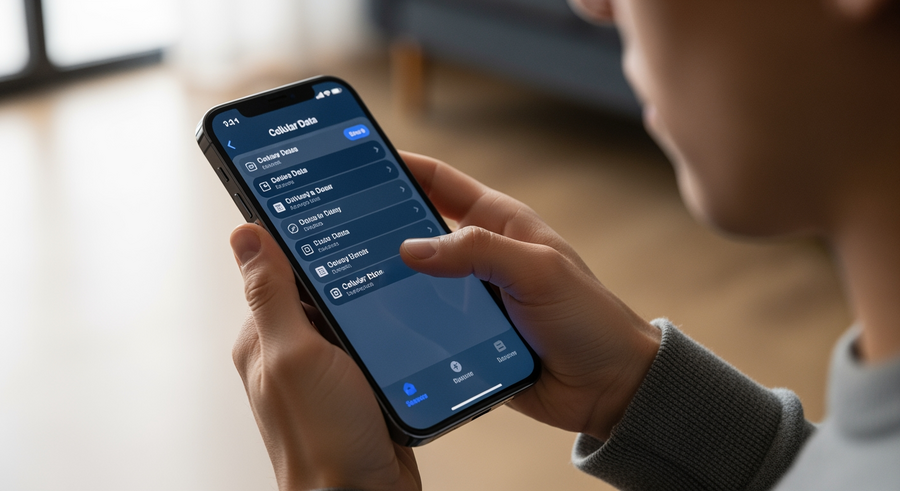
You can verify your internet consumption directly by opening the Settings app and tapping on Cellular (or Mobile Data depending on your region). Learning how to check data usage on iPhone is essential for managing your plan and avoiding unexpected overage fees. This method applies to all modern Apple devices running the latest iOS, including the iPhone 11 series through the iPhone 16 and newer models released by 2026.
By regularly monitoring these statistics, you ensure that you stay within your carrier’s limits. The process is straightforward, but understanding the details—like distinguishing between your billing cycle and the iPhone’s “current period”—is crucial for accurate tracking.
Summary
In this guide, you will find step-by-step instructions on how to track your internet consumption on iOS. You will learn where to find usage statistics in Settings, how to identify data-hungry apps, and the importance of manually resetting your statistics to match your billing cycle. You will also discover the difference between what your phone records and what your carrier bills.
TLDR
- Go to Settings > Cellular (or Mobile Data) to see your total usage.
- Scroll down to the “Current Period” section to view consumption by specific apps.
- Use the “Reset Statistics” button at the bottom of the page on the first day of your billing cycle for accuracy.
- Check your specific carrier app for the most accurate “data remaining” balance.
📑 Table of Contents
- What is Cellular Data Usage?
- How to Check Data Usage on iPhone Settings
- How to See Data Usage by App on iPhone
- How to Check Your Monthly Data Usage (The “Current Period” Issue)
- How to Check How Much Data You Have Left (Carrier Methods)
- Can You Check Wi-Fi Data Usage on iPhone?
- Frequently Asked Questions (FAQ)
What is Cellular Data Usage?
Cellular data is the digital information transferred to and from your iPhone using your mobile carrier’s network (such as 4G, 5G, or LTE) rather than a Wi-Fi connection. Whenever you browse the web, stream music, download emails, or use social media without being connected to Wi-Fi, you are consuming cellular data.
It is important to distinguish between the data your iPhone tracks and the data your carrier bills you for. The iPhone measures the total amount of data processed by the device’s hardware. However, your carrier might count data differently due to specific plan features, such as “zero-rating” for certain streaming services or rounding up data packets. Therefore, while your iPhone gives you a precise technical count, your carrier’s count is the one that determines your bill.
How to Check Data Usage on iPhone Settings
Checking your overall consumption is a simple process that remains consistent across the iOS ecosystem. Whether you are looking for how to check data usage on iPhone 13, iPhone 14, iPhone 15, or the newest iPhone 16, the steps are identical.
Step-by-Step Instructions:
- Open the Settings app on your home screen.
- Tap on Cellular (in the US and some regions) or Mobile Data (in the UK and Europe).
- Scroll down to the section labeled Cellular Data (or Mobile Data).
- Look for the line that says Current Period.
Beside “Current Period,” you will see a number (e.g., 14.5 GB or 800 MB). This figure represents the total amount of data sent and received over your cellular network since the statistics were last reset. If you are roaming, you will also see a separate “Current Period Roaming” statistic, which is vital for avoiding high travel costs.
How to See Data Usage by App on iPhone
Sometimes the total number isn’t enough; you need to know exactly where that data is going. iOS provides a granular breakdown that allows you to identify which specific apps are consuming the most data so you can manage your plan effectively.
To view this detailed list, look immediately below the “Current Period” total in the Cellular settings menu. You will see a list of your installed apps sorted by data usage, starting with the highest consumer.
💡 Actionable Tip
If you see an app using too much data (like a social media app downloading videos in the background), you can toggle the switch next to that app to the OFF position. This blocks that specific app from using cellular data entirely, forcing it to wait until you connect to Wi-Fi.
How to Check Your Monthly Data Usage (The “Current Period” Issue)
One of the most confusing aspects of iOS data tracking is the “Current Period.” Unlike some Android devices, the iPhone does not automatically reset these statistics at the beginning of your billing cycle. If you have never pressed the reset button, the number displayed might be the total usage since you bought the phone years ago.
To accurately track your monthly data usage on iPhone, you must perform a manual reset.
- How to Reset Your Statistics:
-
1. Go to Settings > Cellular.
2. Scroll to the very bottom of the page (past the list of apps).
3. Tap Reset Statistics.
4. Confirm the action.
Recommendation: Set a recurring reminder on your calendar for the day your billing cycle renews (e.g., the 1st of every month). On that day, reset your statistics. This is the only way to make the “Current Period” on your iPhone match your actual monthly bill.
How to Check How Much Data You Have Left (Carrier Methods)
The iPhone settings tell you how much data you have used, but they do not know your data limit. To find out how much data you have left, you need to query your carrier directly.
📱 Carrier Apps
The most accurate method is to download your provider’s official app (e.g., My Verizon, T-Mobile, myAT&T, My Vodafone). These apps usually display a real-time dashboard showing your remaining allowance and days left in the cycle.
🔢 USSD Shortcodes
Many carriers allow you to check data usage on iPhone by dialing a shortcode in the Phone app. For example, dialing *#DATA# often triggers a text message containing your current balance.
Can You Check Wi-Fi Data Usage on iPhone?
Many users ask, “Can you check Wi-Fi data usage on iPhone?” The direct answer is: No, not natively through iOS settings.
While the iPhone tracks cellular consumption meticulously, it does not display a user-accessible log of Wi-Fi data usage per app in the Settings menu. Apple prioritizes cellular tracking because that is what costs users money.
If you strictly need to monitor Wi-Fi usage (for example, if you have a capped home internet plan), you have two alternatives:
- Router Settings: Log into your home ISP router’s admin panel. Most modern routers track data usage by device.
- Third-Party Apps: Network monitoring apps from the App Store can sometimes track this, though they often require specific permissions to run in the background.
Frequently Asked Questions (FAQ)
What causes high data usage on iPhone?
High data usage is usually caused by streaming high-definition video (4K or HD) on platforms like YouTube or Netflix without Wi-Fi. Other common culprits include social media apps with auto-play videos (like Instagram or TikTok), automatic iOS software updates occurring over cellular, and iCloud Photos syncing when not connected to a home network.
How do I check System Services data usage?
To see data consumed by the iPhone’s operating system, go to Settings > Cellular and scroll to the bottom of the app list. Tap on System Services. Here you will see a breakdown of data used for features like Push Notifications, Time & Location, Siri, and DNS Services.
What does pressing *#21 do on iPhone?
There is a common misconception that dialing *#21# helps you check data usage. In reality, dialing *#21# on your iPhone checks the status of your Call Forwarding settings. It will tell you if your calls, texts, or data are being forwarded to another number, but it does not provide information regarding your data consumption balance.
How to see how much hotspot data I have left?
You can see how much data your Personal Hotspot has consumed by looking under the “Cellular Data” section in Settings; it is often listed as a specific category. However, to see how much hotspot data you have left (since many carriers have a specific cap for hotspot usage distinct from your main data), you must check your carrier’s official app or website.
Written by
Conor Byrne

