

Fix a “SIM card not supported” or “SIM card not working” error fast. Follow our simple 2026 guide to troubleshoot your iPhone or Android and stay connected.
SIM Card Not Supported? How to Fix in 2026
SIM Card Not Supported? How to Fix in 2026
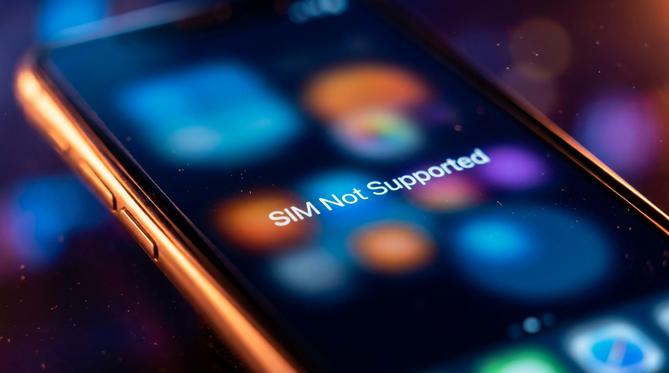
SIM Card Not Supported or Not Working? How to Fix It in 2026
If you see a “SIM card not supported” or “SIM card not working” error on your screen, you’re not alone. This guide will help you troubleshoot and fix the issue across different devices like iPhones, Samsung phones, and Androids.
Summary
A SIM card error usually means your phone is locked to another carrier, the SIM is damaged, or there is a software glitch. We will walk you through the easiest ways to get your phone connected again.
TLDR
- Your phone might be locked to your previous carrier.
- The SIM card could be physically damaged or dirty.
- A quick restart or software update often fixes the issue.
- You can reset your network settings to clear out glitches.
📱 Table of Contents
What Does “SIM Card Not Supported” Mean?
A “SIM card not supported” error means your phone can’t read or accept the inserted SIM card. This usually happens when your phone has a carrier lock. This means it is tied to a specific network provider and blocks other SIM cards. If you see a “SIM not allowed” message, it typically means the network has blocked the SIM or your prepaid account is inactive.
Why Is Your SIM Card Not Working?
There are a few common reasons why a SIM card might fail in a new phone or an existing device. Let’s look at the main causes so you can identify the problem quickly.
Carrier Locks and Restrictions
Phones bought directly from a provider are often locked to that specific network. If you put a different provider’s SIM in, it will say the SIM is not supported.
Hardware Damage or Dirty SIM Tray
Dust in the SIM tray, a scratched card, or a bent tray can stop the phone from reading the chip. Physical damage is a very common culprit.
Software and Network Glitches
Outdated software, network outages, or incorrect settings can cause a phone to reject a SIM card entirely.
How to Fix a SIM Card Not Supported Error
In order to fix a SIM card not supported error, you need to follow a few simple troubleshooting steps. These quick actions can solve most connection issues.
Restart Your Phone
Turn your device off and on again. This simple step forces the phone to reconnect to the network and clears minor glitches.
Reinsert and Clean the SIM Card
Carefully remove the SIM, wipe it with a soft cloth, and place it back. Check if the SIM card is not working in another phone to rule out a broken card.
Check for Carrier Locks
If your SIM card is not working in a new phone or new iPhone, check if the device is locked. You can contact your previous carrier to unlock it so you can use any network.
Update Your Device Software
Running the latest iOS or Android software from 2026 ensures there are no bugs preventing the SIM from connecting. Head to your settings and download any available updates.
Reset Network Settings
Resetting your network settings clears out faulty connections on both iOS and Android.
- On iPhone: Go to Settings > General > Transfer or Reset iPhone > Reset > Reset Network Settings.
- On Android: Go to Settings > General Management > Reset > Reset Network Settings.
Device-Specific SIM Card Issues
Sometimes, the fix depends on the brand of phone you’re using. Here is how to handle errors on specific devices.
🍎 SIM Card Not Working on iPhone and iPad
If you see “SIM card not supported on iPhone 13” or wonder why your SIM is not supported in an iPhone, check your Apple settings. Go to Settings > General > About and look for “Carrier Lock”. If it says “No SIM restrictions”, your phone is unlocked.
🤖 SIM Card Not Supported on Samsung and Android
If your SIM card is not working in a Samsung phone, ensure the SIM is enabled. Go to Settings > Connections > SIM Manager and toggle the switch on. Make sure your preferred network type is set to auto-connect.
Specific Network and Feature Errors
You might experience issues with specific features rather than a total loss of service. Here is what they mean and how to fix them.
- SIM Not Supported for eSIM Transfer
- If an eSIM transfer fails, you often need to scan a new QR code from your carrier. You can also contact their support team for a fresh setup profile.
- SIM Card Not Supported for RCS Chat
- If RCS chat isn’t working, you may need to update the Carrier Services app. You can also try verifying your phone number again in the Messages app settings.
- SIM Not Allowed for Voice or Data
- If your SIM card is not working for data or you see a “SIM not allowed for voice” message, your prepaid plan has likely run out of credit. It can also mean your APN settings are wrong.
Frequently Asked Questions (FAQ)
How to bypass SIM not supported on iPhone?
To bypass a SIM not supported error on an iPhone, you must contact the original carrier to unlock the device officially. Third-party bypass tools are not secure or permanent.
What SIM card does a TCL phone use?
Most modern TCL phones use a Nano-SIM card.
What kind of SIM card does a Galaxy S10 use?
The Samsung Galaxy S10 uses a Nano-SIM card.
Why is my Cricket Wireless SIM card not supported?
Your phone might be locked to another network, or the Cricket Wireless SIM card is not activated yet.
What to do when Jio or Airtel SIM is not working?
Check your network settings, ensure you have an active prepaid plan, and verify that the SIM is inserted in the primary 4G/5G slot of your phone.
Keep Your Phone Connected with Recharge.com
Once your SIM card is working, you need credit to stay connected. Recharge.com is the fastest and most secure way to buy mobile top-ups for yourself or family abroad.
We deliver 99.9% of orders in 20 seconds, ensuring you get your credit right when you need it. Enjoy secure payments and a global reach that keeps you in touch with the people who matter most. Top up your mobile credit now and enjoy a seamless connection.
Written by
Conor Byrne


