

Learn how to safely remove and replace the SIM card on your iPhone (models 7 to 16). This step-by-step guide shows the exact tray location for each model, how to eject it with or without a tool, and explains the switch to eSIM for US iPhone 14, 15, and 16 users.
How to Remove & Replace an iPhone SIM Card (Models 7-16)
How to Remove & Replace an iPhone SIM Card (Models 7-16)
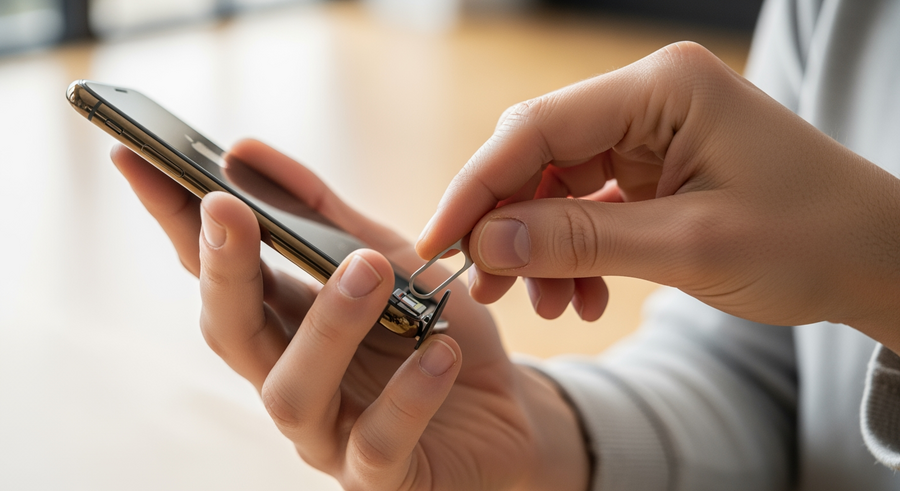
How to Remove and Replace the SIM Card on iPhone (Models 7 to 16)
Knowing how to remove the SIM card from an iPhone is a fundamental skill for troubleshooting connectivity, swapping carriers, or traveling internationally in 2026. While Apple has moved towards eSIM technology—removing the physical tray entirely from US models starting with the iPhone 14—millions of users with models 7 through 13, as well as international versions of the iPhone 14, 15, and 16, still rely on physical nano-SIM cards. Whether you are upgrading your device or simply need to change your number, the process remains quick and requires minimal tools.
This guide covers the exact location of the SIM tray for every model from the iPhone 7 up to the latest iPhone 16. It also explains how to handle US models that no longer feature a “hole” for the card. By following these steps, you can safely replace your SIM card without damaging your device’s internal components or losing your data.
Summary
To change your iPhone’s physical SIM card, you need to identify the model of your phone to locate the tray, which is either on the right or left side. You use the Apple SIM ejector tool or a sturdy household item like a paperclip to eject the tray. You then swap the old card for the new one, ensuring the notched corner aligns perfectly. However, if you are using a US model of the iPhone 14, 15, or 16, you do not have a physical tray; instead, you must manage your cellular plan digitally via settings.
TLDR
- Locate the tray: Look for the pinhole on the side of your device (Left side for iPhone 12-16 International; Right side for iPhone 7-11/SE).
- Eject: Push a SIM tool or paperclip firmly into the hole until the tray pops out.
- Swap: Place the new SIM in the tray, matching the angled corner.
- Reinsert: Push the tray back in until flush.
- US Models (14/15/16): These have no physical slot; you must use eSIM via Settings.
📑 Table of Contents
- Where is the SIM card slot located on my iPhone?
- iPhone 12, 13, 14, 15, and 16 (International Models)
- iPhone SE, 11, XR, 8, 7, and earlier
- Why does my iPhone 14, 15, or 16 have no SIM slot?
- How to change the SIM card on iPhone (Step-by-Step)
- How to open the SIM card slot without a tool
- Preparation and Troubleshooting
- Frequently Asked Questions (FAQ)
Where is the SIM card slot located on my iPhone?
Finding the SIM card slot on your iPhone is the first step, but its location depends entirely on your model generation. Apple has shifted the position of the internal components over the years, moving the SIM tray from the right side to the left side on newer devices. Below is a breakdown to help you find the correct location for your specific device.
iPhone 12, 13, 14, 15, and 16 (International Models)
For the iPhone 12 lineup and all newer models that possess a physical tray (this includes international versions of the iPhone 14, 15, and 16 sold outside the US), the SIM tray is located on the left side of the device. You will find the small pinhole below the volume buttons.
iPhone SE, 11, XR, 8, 7, and earlier
For older generations, which includes the iPhone 11, the iPhone SE (all generations through 2022), iPhone XR, iPhone 8, and iPhone 7, the SIM tray is located on the right side of the device. It is positioned below the side power/sleep button.
Why does my iPhone 14, 15, or 16 have no SIM slot?
If you have an iPhone 14, 15, or 16 purchased in the United States, you will notice there is no hole or tray on either side. Apple removed the physical SIM mechanism from US models starting in 2022 to transition fully to eSIM (embedded SIM) technology. An eSIM is a digital version of a SIM card built directly into the phone’s motherboard. Consequently, you cannot “remove” the card. Instead, you must add or remove cellular plans digitally by navigating to Settings > Cellular.
How to change the SIM card on iPhone (Step-by-Step)
Once you have identified the location of your tray, the process to swap the card is straightforward. Follow these precise steps to ensure you do not damage the sensitive contacts inside the phone.
- Power Down (Optional): While iPhones support hot-swapping, turning off your device is the safest way to prevent network glitches. Hold the power and volume down buttons, then slide to power off.
- Locate the Pinhole: Find the small circular hole on the side of the iPhone frame (as detailed in the section above).
- Insert Tool: Insert the SIM ejector tool or a paperclip into the hole. Press firmly straight in towards the device. You may need to apply a surprising amount of pressure until the tray pops out slightly.
- Swap Cards: Pull the tray gently out of the phone. Remove the old SIM. Place the new SIM into the tray. Notice the notched corner on the card; it will only fit into the tray in one specific orientation.
- Reinsert: Slide the tray back into the slot completely. It should click into place and sit flush with the side of the iPhone. Turn your phone back on.
How to open the SIM card slot without a tool
If you have lost the official Apple ejector tool that came in the box, you do not need to buy a replacement. Several common household items can effectively remove the SIM card from an iPhone.
📎
Paperclip
The best alternative. Bend one end straight to create a sturdy poker.
💍
Earring
A standard stud earring post is usually thin and strong enough to work.
📏
Staple
Bend a staple outward carefully. Use the straight leg to push the mechanism.
🪡
Sewing Needle
Use the blunt end (the eye) if possible to avoid internal scratches. Use caution.
Preparation and Troubleshooting
Even a simple process can raise questions about data safety and connectivity. Here are the most common concerns users have before and after swapping their SIM cards.
- Do I need to turn off my iPhone before changing the SIM?
- While strictly speaking, iPhones allow “hot-swapping” (changing the SIM while the phone is on), it is safer to turn it off. If you don’t want to power down completely, at least toggle Airplane Mode on. This prevents the phone from getting confused as it suddenly loses and regains network connection.
- Will I lose my contacts if I replace my SIM card?
- No, you will not. Unlike phones from the early 2000s, modern iPhones do not store contacts on the SIM card. Your contacts, photos, and apps are stored on the device’s internal memory or synced to iCloud. Swapping the SIM only changes your carrier connection.
- What to do if iPhone says “No Service” after changing SIM
- If your phone doesn’t connect immediately:
- Toggle Airplane Mode on for 10 seconds, then off.
- Restart the iPhone completely.
- Go to Settings > General > About to check for a Carrier Settings Update.
- Eject the tray and ensure the SIM is seated perfectly flat.
Frequently Asked Questions (FAQ)
Can I just swap SIM cards between iPhones?
Yes, provided both iPhones use a Nano-SIM (which all models from iPhone 5 to iPhone 16 do). The new iPhone must be either unlocked or locked to the same carrier as the SIM card you are inserting.
What does changing the SIM card on an iPhone do?
Changing the SIM card updates the cellular identity of the phone. It assigns the phone number and data plan associated with that specific card to your device. This is the primary method for switching phone carriers while keeping your existing hardware.
Can you put a SIM card in an iPhone without the tray?
No. Never attempt to jam a SIM card into the slot without the tray. The tray is engineered to hold the card in the precise position required for the contacts to touch. Inserting a card without it will almost certainly result in the card getting stuck inside, requiring professional repair.
When should I change the SIM card on a new iPhone?
You should insert your SIM card during the initial setup process of your new device. This ensures your phone number is active immediately, allowing for smoother verification of iMessage, FaceTime, and Apple ID services.
Can I use a replacement SIM card tray from a different iPhone model?
Generally, no. Although they look similar, SIM trays are model-specific. An iPhone 11 tray will not fit flush in an iPhone 13. If you lose your tray, you must buy a replacement specifically designed for your exact iPhone model and color.
Written by
Conor Byrne


