

Follow our step-by-step guide to easily remove and replace the SIM card on your iPhone (models 7-16). Learn where to find the slot, how to open the tray without a tool, and what to know about eSIM on newer US models.
How to Remove & Replace the SIM Card on iPhone (Models 7-16)
How to Remove & Replace the SIM Card on iPhone (Models 7-16)
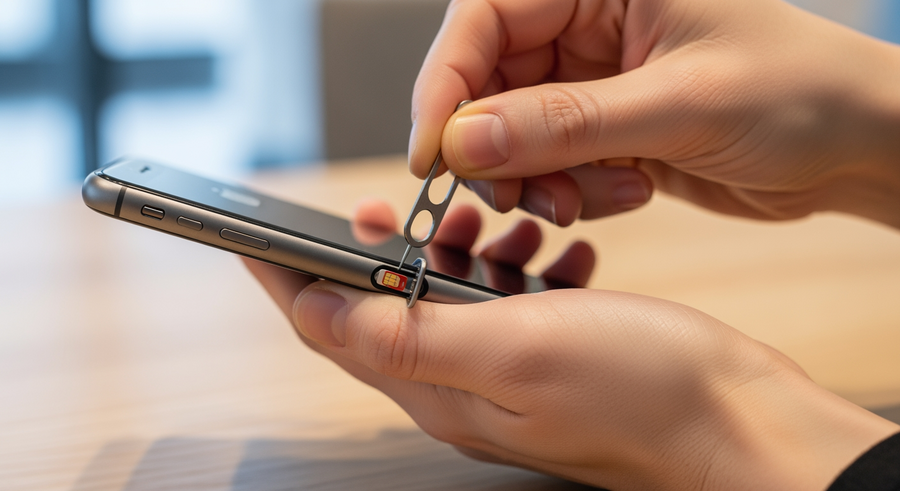
How to Remove and Replace the SIM Card on iPhone (Models 7 to 16)
Whether you are traveling internationally, upgrading your device, or simply looking to change their carrier, accessing the SIM card slot is a fundamental skill for iPhone owners. While the process has remained largely consistent for over a decade, recent changes in hardware have introduced some variations. Older models utilize a standard physical nano-SIM tray, whereas modern US versions of the iPhone 14, 15, and 16 now rely on eSIM technology exclusively. For those with physical trays, you will need a removal tool or a simple household alternative to pop the mechanism open safely.
Summary
In this guide, you will learn exactly where to find the SIM card slot on various iPhone models, ranging from the iPhone 7 up to the latest iPhone 16. You will discover how to open the tray using the official tool or common household items if you have lost the original pin. Additionally, we cover the specific differences for US models of the newer iPhones that utilize eSIM technology, ensuring you have all the information needed to manage your mobile connection successfully.
TLDR
- Locate the small pinhole on the side of your iPhone (left side for iPhone 12-16, right side for earlier models).
- Insert a SIM ejector tool or a bent paperclip into the hole and push firmly until the tray pops out.
- Swap the card and reinsert the tray; it only fits in one direction.
- Note that US models of iPhone 14, 15, and 16 do not have a physical SIM tray and use eSIM only.
📑 Table of Contents
Where Is the SIM Card Slot Located on My iPhone?
Finding the SIM tray is the first step in the process. Apple has shifted the location of the tray depending on the generation of your device.
Models with the SIM Tray on the Left Side (iPhone 12 – 16)
If you own a modern device, look on the left edge (below the volume buttons):
- iPhone 12 series
- iPhone 13 series
- iPhone 14, 15, and 16 series (International Models)
Note: If you bought an iPhone 14, 15, or 16 in the United States, there is no SIM tray.
Models with the SIM Tray on the Right Side (iPhone 4 – 11 and SE)
For slightly older devices, the tray is located midway down the right edge (usually below the power button):
- iPhone 6, 6s, 7, 8 (and Plus models)
- iPhone X, XR, XS, XS Max
- iPhone 11 series
- iPhone SE (All generations)
How to Change the SIM Card on iPhone Step-by-Step
Once you have located the slot, the physical process of swapping the card is straightforward. Follow these precise steps to ensure you do not damage the internal components.
- Step 1: Power Down (Recommended)
- While not strictly mandatory, turning off your iPhone is recommended to prevent any electrical shorts or network glitches during the swap.
- Step 2: Eject the Tray
- Insert your SIM ejector tool (or a paperclip) into the small circular hole next to the tray. Apply steady pressure straight in towards the iPhone until the tray pops loose.
- Step 3: Remove the Tray
- Gently pull the tray completely out of the device using your fingers.
- Step 4: Swap the Card
- Remove the old SIM card from the tray. Place your new Nano-SIM into the tray. It will only fit one way because of the notched corner. Ensure it sits flush.
- Step 5: Reinsert the Tray
- Push the tray back into the phone in the same orientation you removed it. Press firmly until you hear or feel a click, indicating it is sealed.
How to Open the SIM Card Slot Without a Tool
It is very common to lose the official metal “key” that comes in the iPhone box. If you need to remove the SIM card without the official tool, several household items work perfectly as a substitute.
💡 Quick Tip: Always choose an object that is sturdy and fits easily into the hole. Avoid forcing an object that is too thick.
You can use the following alternatives:
- Paperclip: Bend one end of a standard paperclip straight. This is the most reliable alternative.
- Safety Pin: Use the sharp end, but be careful not to prick your finger.
- Earring Stud: A standard post earring often fits perfectly into the eject hole.
- Staple: In a pinch, a single staple can work, though it may be difficult to grip.
⚠️ Warning: Do not use sewing needles or extremely sharp, thin pins. These can easily slip past the ejection mechanism and puncture the water resistance seal or internal battery.
Handling iPhone 14, 15, and 16 (eSIM vs. Physical SIM)
As we navigate through 2026, the transition to eSIM has become the standard for Apple’s US market. Understanding whether your device relies on physical media or digital profiles is crucial.
Does the iPhone 14, 15, or 16 Have a SIM Card Slot?
This depends entirely on where you purchased the device. If you bought your iPhone 14, 15, or 16 in the United States, it does not have a SIM card slot. The chassis is completely smooth on the sides, with no hole or tray. These models are eSIM-only.
However, if you purchased your device in Europe, Asia, or other international markets, it will likely still feature the physical Nano-SIM tray on the left side, allowing you to use both a physical card and an eSIM simultaneously.
How to Switch Carriers on an eSIM-Only iPhone
Since there is no physical chip to swap, changing carriers is done via software:
- Go to Settings > Cellular (or Mobile Data).
- Tap Add eSIM.
- You can transfer a number from a nearby iPhone or scan a QR code provided by your new carrier.
What Happens When You Change Your SIM Card?
Many users worry about data loss when performing this swap. It is important to understand exactly what is—and isn’t—stored on that small plastic chip.
Will I Lose Contacts or Photos?
No. Your photos, apps, messages, and contacts are stored on your iPhone’s internal memory or backed up to iCloud. The SIM card strictly holds your phone number and carrier authorization data. Swapping the SIM will not delete your personal content.
Do I Need to Back Up First?
While regular backups are good practice, it is not required for a simple SIM swap. Your data remains safe on the device. However, if you are also switching to a brand new phone (not just the card), then a backup is essential.
Frequently Asked Questions (FAQ)
Can I just swap SIM cards on my iPhone?
Yes, you can freely swap SIM cards as long as your iPhone is “unlocked.” If your phone is paid off and not tied to a specific carrier contract, it will accept SIM cards from other networks. If it is locked, you must contact your original carrier to unlock it first.
How do I remove the SIM card if the tray is stuck?
If the tray refuses to pop out after applying firm pressure, do not force it or pry it with a knife. This usually indicates the mechanism is jammed or the internal lever is broken. Take the device to an Apple Store or a certified repair shop to avoid permanently damaging the housing.
Why does my iPhone say “No Service” after changing the SIM?
It may take a moment for the new network to register. If it stays on “No Service,” try toggling Airplane Mode on and off, or restart your iPhone. You should also check Settings > General > About to see if a “Carrier Settings Update” prompt appears.
Can you put a SIM card in an iPhone without the tray?
No. The SIM tray is an essential component that holds the chip in the exact position required for the internal readers to make contact. You cannot slide a raw SIM card into the slot without the tray; it will get lost inside the phone. If you have lost your tray, you must purchase a specific replacement for your model.
Written by
Conor Byrne


