

Is your iPhone stuck on ‘SOS Only’? Learn what it means, the common causes, and how to fix it fast. Our step-by-step guide helps restore your cellular service on any iPhone model.
SOS Only on iPhone: What It Means & How to Fix It
SOS Only on iPhone: What It Means & How to Fix It
SOS Only on iPhone: Meaning, Causes, and How to Fix It
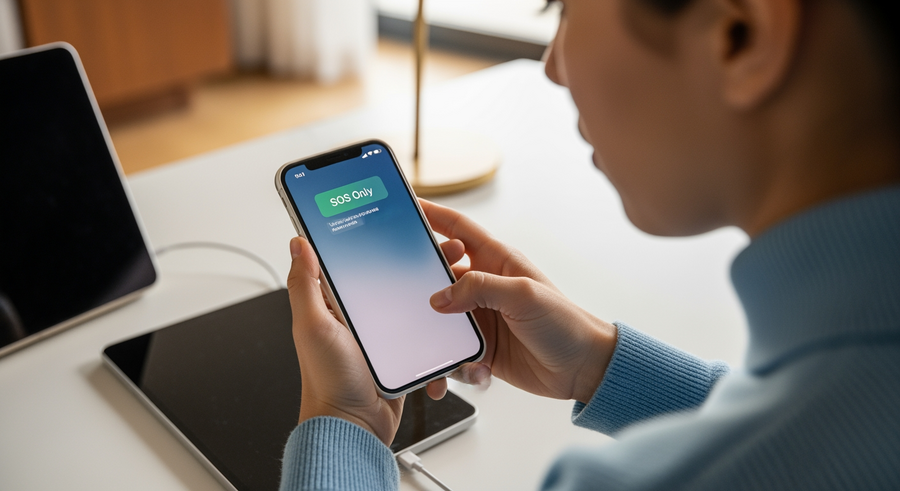
If you see “SOS Only” in the status bar of your iPhone, it means your device is not connected to your carrier’s cellular network, but it is still functional enough to make emergency calls over other networks. This issue can be frustrating, especially when you are expecting important calls or need to use data, but in most cases in 2025, it is a software glitch rather than a hardware failure. Whether you are using the latest iPhone 16 or an older model, the fix is usually within your settings.
Summary
This article explains why your iPhone is stuck in SOS mode and provides a step-by-step guide to restoring your service. You will learn that “SOS Only” indicates no cellular connection to your specific provider, though emergency bands are still accessible. We cover solutions ranging from simple toggles like Airplane mode to troubleshooting eSIM profiles on the iPhone 16, ensuring you can get back online regardless of your carrier.
TLDR
- What it means: Your phone cannot connect to your carrier (Verizon, T-Mobile, AT&T, etc.) but can dial 911 via other towers.
- Quickest Fixes: Toggle Airplane mode, restart your iPhone, or check for a Carrier Settings update.
- Hardware check: Ensure your physical SIM is seated correctly or your eSIM line is toggled “On.”
- Scope: These fixes apply to all models, from iPhone 8 to the new iPhone 16.
📑 Table of Contents
What Is “SOS Only” Mode on iPhone?
SOS Only on iPhone means your device is not connected to your specific carrier’s network and cannot make standard phone calls, send SMS texts, or use cellular data. However, the “SOS” icon indicates that your iPhone is still functional and has detected cellular towers from other carriers nearby. Because government regulations require mobile phones to be able to make emergency calls regardless of the carrier plan, your iPhone allows you to dial emergency services (like 911, 112, or 999) using these other networks.
You will typically see this icon in the top right corner of the status bar. It is important to distinguish this from “No Service.” If your phone says “No Service,” it generally means it cannot communicate with any cell tower at all. If it says “SOS Only,” the hardware is working and talking to towers, but it is denied access to the main network for non-emergency tasks.
Why Does My iPhone Say “SOS Only”?
Your iPhone says SOS Only because it has lost the “handshake” authorization with your cellular provider. While this can look alarming, it is rarely a sign that your phone is broken. The issue usually stems from one of a few common categories.
🌐 Network Issues
Your carrier (Verizon, T-Mobile, AT&T) might be experiencing a temporary local outage, or you are in a “dead zone” (like a basement) where your specific carrier’s signal cannot reach.
📱 SIM/eSIM Problems
For older phones, the physical SIM card might be dislodged. For iPhone 14, 15, and 16 models, you might have an inactive eSIM profile or a failed activation.
⚙️ Settings & Software
Accidental changes to your cellular settings, roaming toggles, or a bug in iOS 18/19 can cause the modem to stop searching for your specific network.
📡 Antenna Failure
(Rare) Internal hardware damage to the antenna lines, usually following a drop or water damage.
How to Fix “SOS Only” on iPhone
To fix the SOS Only error on your iPhone, follow these step-by-step solutions, starting with the easiest fixes. These steps apply to all modern iOS devices, including the iPhone 16, 15, 14, 13, 12, 11, and SE.
Check Your Location and Coverage Area
Before changing settings, verify your physical environment. If you are underground, in a concrete building, or in a rural area, you may simply be out of range. Weak signals often trigger the phone to toggle between 5G/LTE and SOS mode.
💡 Quick Tip: Move to a window or go outside. If the signal bars return, the issue is environmental, not technical.
Toggle Airplane Mode On and Off
This forces the modem to restart and search for a signal connection afresh.
- Open the Control Center (swipe down from the top-right corner).
- Tap the Airplane icon to turn it orange.
- Wait for at least 10 seconds.
- Tap the icon again to turn it off and watch the status bar to see if it reconnects to 5G or LTE.
Restart Your iPhone
A simple restart clears temporary cache files that might be interfering with network processes. This is often the most effective way regarding how to stop sos only on iphone.
- For iPhone X through iPhone 16: Press and hold the Volume Up and Power buttons until the “slide to power off” slider appears. Slide it, wait a minute, and turn it back on.
- For iPhone SE/8: Press and hold the Side button until the slider appears.
Check for Carrier Settings Updates
Carriers frequently release small updates to improve connectivity and compatibility with towers. These are separate from iOS updates.
Go to Settings > General > About. If an update is available, you will see a pop-up asking you to install a “Carrier Settings Update.” Tap Update immediately.
Turn Cellular Data Roaming On or Off
Sometimes resetting the roaming toggle helps the device re-authenticate with the nearest tower, even if you are not traveling internationally.
Navigate to Settings > Cellular > Cellular Data Options and toggle Data Roaming on. If it was already on, toggle it off and then back on again.
Troubleshoot Your Physical SIM Card
If you have an iPhone 13, SE, or an older model with a physical SIM tray:
- Use a SIM ejector tool to remove the tray on the side of the phone.
- Inspect the card for corrosion or damage.
- Blow gently into the slot to remove dust.
- Reinsert the tray firmly.
Fix eSIM Issues (iPhone 14, 15, and 16)
Since the US models of the iPhone 14 series and newer are eSIM only, you cannot physically remove the card. Instead, you must reset the software profile.
Go to Settings > Cellular. Under the “SIMs” section, tap on your phone number. Ensure the line is toggled to On. If it is on, try toggling it off, waiting a few seconds, and turning it back on. If the eSIM profile says “No SIM” or is missing, you must contact your carrier to download a new eSIM.
Switch Voice & Data to LTE or 5G
Sometimes the 5G Auto setting tries to connect to a weak 5G signal that fails, causing the SOS error. Forcing LTE can stabilize the connection.
Go to Settings > Cellular > Cellular Data Options > Voice & Data. Select LTE temporarily to see if the signal returns.
Reset Network Settings
⚠️ Warning: This step will erase your saved Wi-Fi passwords and Bluetooth connections. You will need to reconnect to them afterwards.
This is often the “silver bullet” for persistent glitches. It wipes all network-related data and restores them to factory defaults.
Go to Settings > General > Transfer or Reset iPhone > Reset > Reset Network Settings. Enter your passcode and confirm.
Carrier-Specific Troubleshooting (Verizon, T-Mobile, AT&T)
If you have tried all the steps above and your iPhone still says SOS Only, the issue likely lies with the carrier, not your phone. This is common with “att iphone sos only” or “sos only on iphone how to fix verizon” searches.
- 1. Check for Outages
- Visit a site like DownDetector or your carrier’s official Twitter/X support page. If there is a widespread outage in your zip code, you simply have to wait for them to fix the tower.
- 2. Verify Account Status
- Log in to your carrier’s portal via Wi-Fi. Ensure your bill is paid and your line hasn’t been suspended.
- 3. Contact Support
- If your hardware is fine, the carrier may need to “re-provision” your line on their end to refresh your connection.
Frequently Asked Questions (FAQ)
Will “SOS Only” go away on its own?
SOS Only will go away on its own if the cause is a temporary network outage or if you simply move back into a coverage area. However, if the issue is caused by a software glitch, a crashed modem, or a SIM card failure, it will not resolve itself and requires the manual intervention steps listed above.
Why does my new iPhone 16 say “SOS Only”?
This is common during the setup of a new device. It usually means the eSIM activation process from your old phone to the new iPhone 16 failed or hasn’t completed yet. You may need to call your carrier to finalize the transfer of your phone number to the new digital SIM.
Can I use Wi-Fi when my iPhone is in “SOS Only” mode?
Yes, Wi-Fi works normally while in SOS Only mode. You can browse the internet, use apps, and even use Wi-Fi Calling to make phone calls and send texts, provided you have enabled Wi-Fi Calling in your settings previously.
How do I turn off Emergency SOS features entirely?
Some users ask “how to turn off” SOS because they think the feature itself is causing the signal loss. While you cannot “turn off” the status bar error without fixing the signal, you can disable the automatic calling features if they are annoying you. Go to Settings > Emergency SOS and turn off “Call with Hold and Release.” Note that this does not fix your connectivity issue; it only changes how the emergency buttons behave.
Written by
Conor Byrne


