

Learn how to quickly check data usage on your iPhone (models 11 to 16) in 2026. Track app consumption, control your budget, and avoid surprise mobile bills.
How to Check Data Usage on Your iPhone
How to Check Data Usage on Your iPhone
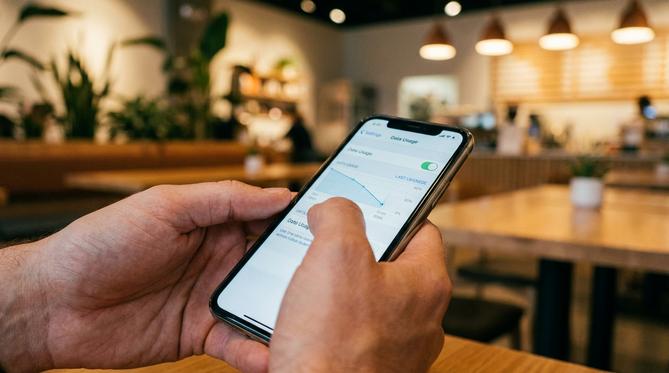
How to Check Data Usage on Your iPhone (Models 11 to 16)
You can quickly check data usage on your iPhone by opening the Settings app and tapping Cellular or Mobile Data. Tracking your data helps you control your mobile budget and prevents you from overspending on your monthly bill. In this guide, you’ll learn exactly how to monitor your usage, find out which apps use the most data, and keep your phone bills predictable.
Summary: Tracking your data helps you stay within your limits and avoid surprise charges. You can easily view your total data consumption and see a breakdown by app right in your iPhone settings.
TLDR
- You can quickly check your data usage by opening your Settings app and tapping on Cellular (or Mobile Data).
- You’ll see your total data used for the current billing period.
- You can scroll down to see exactly how much data each app uses.
- You must manually reset your statistics at the bottom of the screen each month to track your usage accurately.
📱 Table of Contents
- What Is iPhone Data Usage?
- How to Check Cellular Data Usage on iPhone
- How to Check Data Usage on iPhone for Each App
- How to Check Your Monthly Data Usage on iPhone
- How to Check Data Usage on iPhone for Wi-Fi
- What Causes High Data Usage on iPhone?
- Frequently Asked Questions (FAQ)
- Top Up Your Mobile Data Instantly
What Is iPhone Data Usage?
iPhone data usage is the amount of internet data your phone downloads and uploads over a cellular network. Whenever you browse the web, stream music, or send messages without Wi-Fi, you’re using cellular data. Managing this data helps you stay within your prepaid plan limits and ensures you don’t run out of internet access when you need it most.
How to Check Cellular Data Usage on iPhone
To check your cellular data usage, follow these simple steps:
- Open the Settings app on your iPhone.
- Tap on Cellular (this may be called Mobile Data depending on your region).
- Look under the “Cellular Data” section to see your total usage for the current period.
This exact same process applies to all modern Apple devices running the latest iOS software in 2026. Whether you want to know how to check data usage on iPhone 13, how to check data usage on iPhone 14, how to check data usage on iPhone 15, or how to check data usage on iPhone 16, the steps are identical.
How to Check Data Usage on iPhone for Each App
If you want to know how to check data usage on iPhone by app, simply scroll down within the Cellular menu. You’ll see a list of all your installed apps.
The number listed directly below each app’s name shows exactly how much data it has used during the current period.
💡 Budgeting Tip: You can toggle the switch next to any app to turn off cellular data for that specific application. This is a great way to block data-heavy apps like streaming services while you’re away from Wi-Fi. It gives you complete control over how to check data usage on iPhone for each app and manage your budget.
How to Check Your Monthly Data Usage on iPhone
Apple groups your data usage under a “Current Period”. However, iPhones don’t automatically reset this period based on your billing cycle.
If you’re wondering how do you check your monthly data usage on iPhone accurately, you must reset the tracker manually. On the first day of your billing cycle, scroll to the very bottom of the Cellular page and tap Reset Statistics. This ensures that when you want to know how to check data usage on iPhone for the month, the numbers perfectly match your current bill.
How to Check Data Usage on iPhone for Wi-Fi
Apple doesn’t provide a built-in tool to track Wi-Fi data usage directly in the Settings app.
If you’re asking, “can you check wifi data usage on iPhone?”, the best and safest alternative is to use your home internet provider’s official app or log into your Wi-Fi router settings. These platforms will show you exactly how much data your phone pulls over the Wi-Fi network.
What Causes High Data Usage on iPhone?
Several background features and habits can drain your mobile data quickly. If you’re trying to find out what causes data usage on iPhone, look out for these common culprits:
🔄 Background App Refresh
Apps updating their content even when you aren’t actively using them.
⚙️ Automatic iOS Updates
Downloading large system updates over a cellular network instead of Wi-Fi.
🎵 High-Quality Streaming
Watching videos or listening to music in high definition.
📍 Location Services
Navigation and weather apps constantly checking your GPS location.
Sometimes, unexpected data spikes can be a sign of malicious software running in the background. If you notice strange activity, it’s worth checking for signs your phone is hacked.
Additionally, if you’re travelling abroad, background data can lead to massive bills. It’s important to learn how to avoid surprise data roaming fees by managing these settings before you leave.
Frequently Asked Questions (FAQ)
How do you check daily data usage on iPhone?
The iPhone doesn’t have a native daily filter. To check daily usage, you must tap “Reset Statistics” at the start of the day and check the total again at the end of the day.
How to check data usage on iPhone for AT&T or other carriers?
You can check carrier-specific usage by logging into your provider’s official app (like the AT&T app) or by dialling your carrier’s shortcode.
Can you check data usage for older models like iPhone 11 and 12?
Yes, the steps are exactly the same. Knowing how to check data usage for iPhone 11 or how to check data usage on iPhone 12 requires the exact same process of going to Settings and tapping Cellular.
How do I find out what is using so much data on my iPhone?
Look at the list of apps in your Cellular menu. They’re sorted by the highest data usage, making it easy to spot which apps are draining your plan.
Need More Data? Top Up Your Mobile Plan Instantly
Running low on data before your month is over? We make it simple and safe to get back online. Recharge is the fastest and most secure way to top up your prepaid mobile data. With delivery in just seconds, you can pay your way in over 30 currencies and choose from more than 40 secure payment methods.
Whether you’re topping up for yourself or sending data to family abroad, we connect you with providers worldwide. Keep your budget in control and never lose connection.
Written by
Conor Byrne
