
Need to cancel your Xbox Game Pass in Canada? Our step-by-step guide shows you how to end your subscription on any device—web, PC, or console—and request a refund.
How to Cancel Xbox Game Pass & Get a Refund | Simple Guide
How to Cancel Xbox Game Pass & Get a Refund | Simple Guide
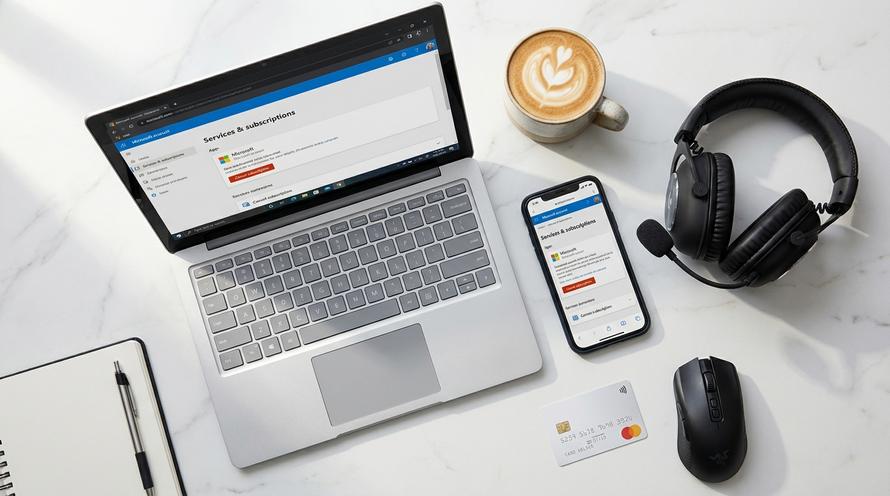
How to Cancel Xbox Game Pass Online (Web Browser)
Whether you’re taking a break from gaming, trying a different service, or just managing your budget, cancelling your Xbox Game Pass is a straightforward process. This guide will walk you through the steps to cancel your subscription on any platform and explain how you can request a refund if you’re eligible. We cover everything from the basic web browser method to navigating the menus on your PC and console. For a complete overview of what the service offers, check out our guide to Xbox Game Pass in Canada.
Summary
In this guide, you’ll find everything you need to know about cancelling your Xbox Game Pass subscription and requesting a refund in 2026. You will learn the specific steps for cancelling online through a web browser, directly from your PC’s Xbox app, on your Xbox console, and using your mobile phone. We also clarify the refund policy, show you how to submit a refund request, and answer common questions about managing your subscription.
TLDR
- Cancel Online: Go to account.microsoft.com, sign in, find “Services & subscriptions,” and click “Manage” on your Game Pass to cancel.
- Cancel on PC/Console: Use the Xbox app (PC) or the Settings menu (Console) to access your subscriptions and follow the prompts to cancel.
- Get a Refund: You may be eligible for a refund if you cancel within 30 days of the initial purchase or right after a renewal. You must submit a request through the Xbox support refund page.
- Turn Off Auto-Renew: The simplest way to cancel is to turn off recurring billing. This lets you use Game Pass until the current period expires without being charged again.
📑 Table of Contents
How to Cancel Xbox Game Pass Online (Web Browser)
The most reliable and universal way to manage your Xbox subscriptions is through the Microsoft account website. This method works on any device with a web browser, including your desktop, laptop, or smartphone. If you’re considering alternatives or perhaps even gifting a Game Pass subscription to a friend later, managing it through the website is the best way to keep track of everything.
- Navigate to the official Microsoft account page: account.microsoft.com.
- Log in using the email address and password associated with your Xbox account.
- Once logged in, click on the “Services & subscriptions” tab at the top of the page.
- Find your active Xbox Game Pass subscription in the list. It will be clearly labelled (e.g., “Game Pass Ultimate”).
- Click the “Manage” link next to your subscription.
- On the next page, select “Cancel subscription” and follow the on-screen instructions to confirm your choice. You may be offered the option to simply turn off recurring billing instead, which lets you use the service until your current subscription period ends.
How to Cancel Xbox Game Pass on PC
If you primarily play on a Windows PC, you can start the cancellation process directly from the Xbox app. While the app itself doesn’t handle the final step, it provides a convenient shortcut to the correct management page.
- Open the Xbox App on your Windows PC. You can find it in your Start Menu.
- Click on your profile icon (your gamerpic) in the top-left corner of the app.
- From the dropdown menu, select “Settings”.
- In the Settings menu, go to the “Account” tab.
- Under the “Subscriptions” section, you will see your active Game Pass membership. Click the “Manage” button.
- This action will open a web browser and take you directly to the Microsoft “Services & subscriptions” page you would use in the online method. From there, follow the final steps to cancel the subscription.
How to Cancel Xbox Game Pass on Console
For gamers who prefer to handle everything directly from their couch, cancelling Game Pass on an Xbox Series X|S or Xbox One console is just as easy. The menus are designed for quick navigation with a controller.
- 🎮 Press the Xbox Button: Press the glowing Xbox button on your controller to open the guide menu.
- ⚙️ Navigate to Settings: Use the joystick or D-pad to go to the Profile & system tab (the one with your gamerpic) and select Settings.
- 👤 Go to Account: In the Settings menu, navigate to the Account section and then select Subscriptions.
- 📄 Choose Your Subscription: You will see a list of your active subscriptions. Select the Xbox Game Pass subscription you wish to cancel.
- ✅ Follow the Prompts: Follow the on-screen instructions. You’ll have the option to turn off recurring billing or cancel immediately. Confirm your choice to finalize the process.
How to Cancel Xbox Game Pass on Phone or App
While the official Xbox Game Pass apps on iOS and Android are great for browsing the game library and remote installations, they do not offer a direct way to cancel your subscription. Tapping on any management options within the app will simply redirect you to your phone’s web browser.
📱 Mobile Cancellation is Browser-Based
To cancel from your phone, you will need to use a mobile web browser like Safari or Chrome. The steps are identical to the desktop web browser method:
- Open your preferred web browser and go to account.microsoft.com.
- Sign in to the correct Microsoft account.
- Tap on the “Services & subscriptions” section.
- Find your Game Pass subscription, tap “Manage”, and then select “Cancel subscription”.
Managing Different Tiers: Game Pass Ultimate vs. Core
A common question is whether the cancellation process differs for various subscription tiers. Whether you have Game Pass Ultimate, PC Game Pass, or the essential Xbox Game Pass Core (formerly Xbox Live Gold), the steps to cancel are exactly the same.
✅ Identical Process
The management interface on your Microsoft account doesn’t change based on your subscription tier. You will follow the same “Manage” -> “Cancel subscription” path regardless of which version you are subscribed to.
❗ What Happens to Your Perks?
Once your subscription fully lapses (at the end of your current billing period), you will lose access to the game catalogue. For former Core or Ultimate members, this also means you will lose access to any “Games with Gold” you claimed unless you own them separately.
How to Cancel Xbox Game Pass and Request a Refund
Simply cancelling a subscription does not automatically trigger a refund. However, under certain conditions, you may be eligible to get your money back. This section covers Microsoft’s official policy and the steps you need to take to request a refund.
Microsoft’s Xbox Refund Policy
Microsoft’s refund policy for digital products is specific. For subscriptions, eligibility is often determined by timing and your location, as some local laws provide different consumer protections.
- Initial Purchase
- You are generally eligible for a full refund on a new subscription if you request it within 30 days of the initial purchase and have not used the service extensively.
- Recurring Charges
- If you cancel a subscription right after a recurring charge has occurred, you may be eligible for a refund of that most recent charge. This is often offered directly during the cancellation process.
- Digital Games vs. Subscriptions
- The policy for refunding a purchased digital game is different. Typically, a game refund requires that you made the purchase within the last 14 days and have not accumulated significant playtime.
Steps to Submit an Xbox Refund Request
If you believe you qualify for a refund, you must formally submit a request through the Xbox support website. Here’s how:
- Navigate to the official Xbox refund request page: support.xbox.com/en-CA/help/subscriptions-billing/buy-games-apps/refund-orders.
- Sign in with the Microsoft account that was used to make the purchase.
- The page will display a list of your recent digital purchases, including subscription charges.
- Select the Xbox Game Pass subscription charge you want to be refunded and click the “Request a refund” button.
- Fill out the form, providing a clear reason for your request. Be honest and concise.
- Submit the form. You will receive an email confirmation, and Microsoft support will follow up on the status of your request, usually within a few business days.
Frequently Asked Questions (FAQ)
How to cancel Xbox Game Pass without login?
You cannot cancel an Xbox Game Pass subscription online without logging into the associated Microsoft account. If you have forgotten your password, use the account recovery tools on the Microsoft login page. If you cannot access the account at all, your best option is to contact your bank or credit card company and request that they block future recurring charges from Microsoft.
How to turn off recurring billing on Xbox?
Turning off recurring billing is the most common way to “cancel” your subscription. This prevents future charges while allowing you to use Game Pass for the period you’ve already paid for. To do this, go to the “Services & subscriptions” page on your Microsoft account, click “Manage” next to Game Pass, and select the option to “Turn off recurring billing”.
If I cancel a subscription, will I get a refund?
Not automatically. Standard cancellation simply stops future payments. However, if you cancel immediately after a recent renewal charge, the cancellation process may present you with an option for an immediate, prorated refund. Otherwise, you must follow the formal refund request process. Eligibility depends on timing and local consumer protection laws in Canada.
How to refund games on Xbox?
Refunding a digital game follows a similar process to a subscription refund. You must go to the Xbox Support “Request a refund” page, select the game from your purchase history, and submit a request. To be eligible, the game must have been purchased within the last 14 days and have minimal playtime logged.
How long do Xbox refunds take?
Once your refund request is approved, the processing time for the money to return to your account is typically 3 to 5 business days. However, this can vary slightly depending on your bank or credit card provider.
Written by
Conor Byrne
