

What is Flight Mode? Discover its uses beyond flying, like saving battery and fixing connections. Learn how to use Airplane Mode on Android and iPhone in Canada.
Flight Mode (Airplane Mode): Uses On & Off the Plane
Flight Mode (Airplane Mode): Uses On & Off the Plane
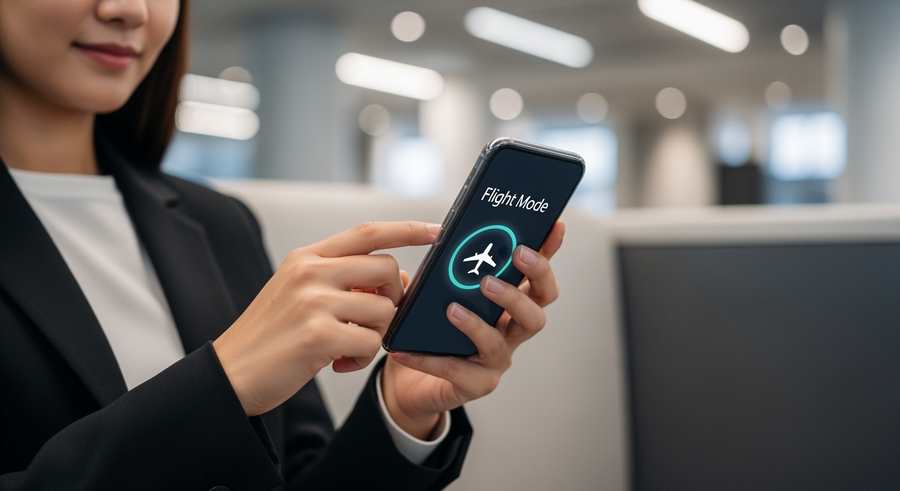
What Is Flight Mode on a Mobile Phone?
Flight Mode, often called Airplane Mode in Canada and across North America, is a setting available on nearly all modern smartphones, laptops, and tablets. Its main purpose is to suspend all of the device’s radio-frequency signal transmission technologies. When you enable Flight Mode, you are essentially telling your device to stop communicating with the outside world by turning off cellular data (for calls, texts, and internet), Wi-Fi, and Bluetooth connections. However, the device itself remains powered on, allowing you to access any content saved directly on it. This makes it perfect for offline use, such as listening to downloaded music, watching saved videos, or playing games that don’t require an internet connection.
While the primary function is to disable outgoing signals, it’s important to note that you can often re-enable Wi-Fi and Bluetooth manually even after turning Flight Mode on. This feature is particularly useful on flights that offer in-flight Wi-Fi services, allowing you to stay connected to the internet without interfering with the aircraft’s systems.
Summary
This guide explains everything you need to know about Flight Mode (or Airplane Mode) on your phone. You’ll learn what it is, its most common uses beyond just air travel—like saving battery and troubleshooting your connection—and how to turn it on or off on both Android and iOS devices. We also answer frequently asked questions to clear up confusion about what Flight Mode does and what it doesn’t do.
TLDR
- Flight Mode turns off all your phone’s wireless signals: cellular, Wi-Fi, and Bluetooth.
- You can still use your phone for offline activities like watching downloaded movies or playing games.
- It’s used for flight safety, saving battery, charging faster, and troubleshooting poor connections.
- You can manually turn Wi-Fi and Bluetooth back on while Flight Mode is active.
- Enabling it is simple: swipe down to access Quick Settings (Android) or Control Centre (iPhone).
📑 Table of Contents
What Is Flight Mode Used For?
While the name suggests its use is limited to air travel, Flight Mode has several practical, everyday applications that can help you manage your device more effectively. Here are some of the most common reasons to use it:
- Air Travel Compliance: The original and most critical use is to comply with aviation safety regulations. Wireless signals from phones could potentially interfere with an aircraft’s sensitive communication and navigation systems. Enabling Flight Mode ensures your device isn’t transmitting any signals, making it safe to use during takeoff and landing. It’s a key part of managing mobile data abroad, especially when you first land and want to avoid roaming charges.
- Battery Conservation: When your phone is constantly searching for a cellular or Wi-Fi signal in an area with poor reception, its battery drains very quickly. By turning on Flight Mode, you stop this constant searching, which significantly extends battery life. This is incredibly useful when you’re hiking, in a basement, or anywhere with a spotty network.
- Troubleshooting Connectivity: If you’re having trouble with your mobile data or Wi-Fi, one of the oldest tricks in the book is to simply turn Flight Mode on for about 30 seconds and then turn it off again. This forces your phone to disconnect from and then re-establish its connection to cellular and Wi-Fi networks, often resolving minor connectivity glitches.
- Faster Charging: Your phone consumes less power when its wireless radios are off. While the difference isn’t massive, enabling Flight Mode while charging can help your device’s battery fill up a little bit faster, which is great when you’re short on time.
- Do Not Disturb: Flight Mode is the ultimate “do not disturb” tool. It blocks all incoming calls, texts, and notifications without you having to turn your phone off completely. This allows you to focus on a task, get an uninterrupted night’s sleep, or simply disconnect for a while, all while still being able to use your phone’s other features like the alarm clock or camera.
How to Enable and Disable Flight Mode
Activating Flight Mode is a quick and simple process on any mobile device. Here’s a breakdown of how to find it on the most popular operating systems.
What Is Flight Mode on Samsung and Android Phones
For most Android users, including those with Samsung devices, the quickest way to access Flight Mode is through the Quick Settings panel.
- Swipe down from the top of your screen to open the notification shade.
- Swipe down a second time to reveal the full Quick Settings panel.
- Look for the icon shaped like an airplane. Tap it to enable Flight Mode. The icon will light up, and you’ll see a small airplane icon in your status bar.
- To disable it, simply tap the icon again.
Alternatively, you can go through the Settings app: Settings > Connections > Flight Mode and toggle the switch.
Enabling Flight Mode on iOS Devices
On an iPhone or iPad, the easiest method is by using the Control Centre, which provides instant access to key settings.
- On an iPhone X or newer, swipe down from the top-right corner of the screen. On an iPhone 8 or older, swipe up from the bottom of the screen.
- This will open the Control Centre.
- Find the airplane icon and tap it. It will turn orange (or another highlight colour depending on your iOS version) to indicate that Flight Mode is active.
- Tap the icon again to turn it off.
You can also find the toggle in the Settings app, right at the top of the main screen: Settings > Airplane Mode.
Frequently Asked Questions (FAQ)
-
What is Flight Mode on a hearing aid?
-
Many modern hearing aids in 2026 come equipped with Bluetooth for streaming audio from phones or other devices. Similar to a smartphone, the Flight Mode on a hearing aid disables these wireless Bluetooth capabilities. This is required by airlines during takeoff and landing. Importantly, it only turns off the wireless streaming; the core function of amplifying sound to help you hear remains active.
-
What is “fight or flight” mode?
-
This term is often confused with the phone setting but is completely unrelated. The “fight-or-flight” response is a physiological reaction that occurs in response to a perceived harmful event, attack, or threat to survival. It’s a concept from psychology and biology, describing the acute stress response where your body releases hormones that prepare you to either fight the threat or flee from it. It has nothing to do with technology or mobile devices.
-
What is Flight Mode in Battlefield 2042?
-
In the context of video games like the *Battlefield* series, “Flight Mode” refers to the in-game mechanics and controls for piloting aircraft like jets and helicopters. It’s not a hardware setting on your console or PC but rather the specific control scheme or server settings related to how flying vehicles handle within the game. Gamers might discuss different flight models or modes when talking about the realism or playability of aerial combat.
-
Does Wi-Fi work when Flight Mode is on?
-
Initially, no. When you first enable Flight Mode, it automatically turns off all radios, including Wi-Fi. However, on most devices, you can manually turn Wi-Fi back on without deactivating Flight Mode. This allows you to connect to in-flight Wi-Fi networks or any other Wi-Fi network while keeping your cellular radio off.
💡 How to re-enable Wi-Fi in Flight Mode: After turning on Flight Mode, simply swipe down to open your Quick Settings/Control Centre and tap the Wi-Fi icon. It will turn on, while the airplane icon remains, indicating your cellular connection is still off.
Written by
Mustafa Aybek
