

Learn how to create custom weapon skins in Call of Duty: Mobile. This guide covers how to master the Gunsmith, unlock camos like Gold, Diamond, and Damascus, and use attachments and blueprints to build a truly unique loadout.
COD Mobile Gunsmith: Create Custom Skins & Camos
COD Mobile Gunsmith: Create Custom Skins & Camos
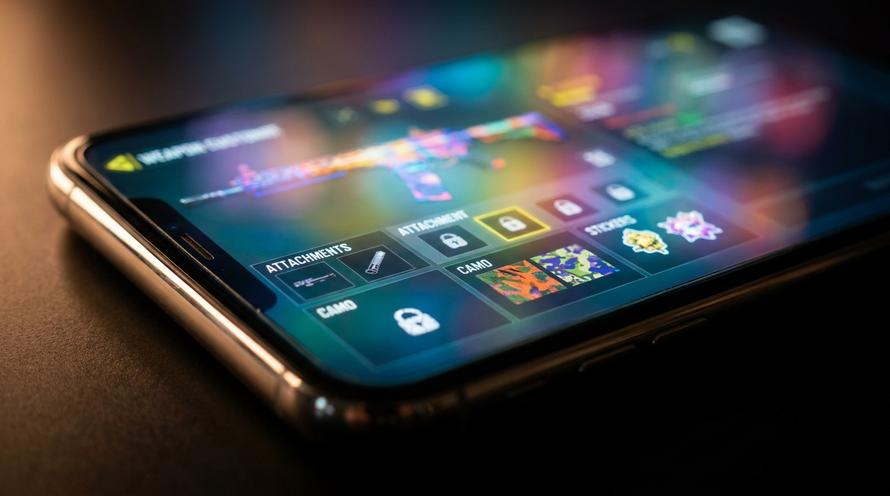
The Gunsmith: How to Create Custom in COD
So, you want to learn how to create your own skin in Call of Duty Mobile? Let’s get straight to it. While you can’t upload your own custom image files or use third-party downloads—doing so is against the game’s terms of service and will get your account banned—CODM offers an incredibly deep customisation system to make your gear unique. It’s a different approach compared to how other popular shooters handle in-game cosmetics, focusing on in-game achievements and combinations rather than external files.
The key to all weapon customisation is the Gunsmith. This is where you’ll transform a standard, factory-issue weapon into a personalised tool of destruction. To get there, simply follow these steps:
- From the main lobby, tap on ‘Loadout’ at the bottom of the screen.
- Select the weapon you wish to customise in either your Primary or Secondary slot.
- Tap the ‘Gunsmith’ button that appears next to the weapon.
Once inside the Gunsmith, you can mix and match dozens of attachments like barrels, stocks, lasers, optics, and magazines. Each attachment not only changes your weapon’s stats but also its physical appearance. A long barrel and a skeleton stock can make an SMG look completely different from its base model. If you prefer the look of the original weapon but want the benefits of your attachments, you can toggle the “Default Look” checkbox. This keeps the classic silhouette while applying the stat changes from your chosen parts.
Grinding and Equipping Base Camos
The first layer of true customisation comes from camos, which are patterned skins you unlock through gameplay. Every weapon has a set of base camo categories you can grind for. These patterns are unlocked by completing specific challenges with that weapon.
- Sand: Unlocked by getting kills.
- Dragon: Unlocked by getting hip-fire kills.
- Splinter: Unlocked by getting long-distance kills.
- Tiger: Unlocked by getting kills with a full set of five attachments equipped.
- Jungle: Unlocked by getting headshots.
- Reptile: Unlocked by getting kills with no attachments equipped.
Each category has multiple unique camos to unlock. Completing all challenges for a weapon is the first major step towards creating a truly custom look.
Unlocking Completionist and Tournament Camos
For the dedicated player, Completionist camos are the ultimate flex. These are special, highly sought-after skins that show off your mastery over a weapon or weapon class.
- Gold: Unlocked by earning all base camos for a single weapon.
- Platinum: Unlocked by earning Gold for all weapons in a specific class (e.g., all Assault Rifles).
- Damascus: Unlocked by earning Platinum for all weapon classes in the game.
- Diamond: Unlocked after getting Gold, requiring you to get 10 kills in a completed match for a set number of matches (e.g., 150 times for Assault Rifles).
Additionally, you can earn animated Seasonal Tournament camos like Red Sprite or Glacial Ripple by competing in the weekend tournaments. These add a vibrant, moving texture to your weapon, making it stand out even more on the battlefield.
Summary
This guide shows you how to create custom skins in Call of Duty: Mobile. You’ll learn that while you can’t upload your own images, you can use the in-game Gunsmith to deeply personalise your weapons with attachments, camos, blueprints, stickers, and charms. You’ll also find out how to customise your operator and Battle Royale items to build a look that is completely your own.
TLDR
- You cannot upload custom image files as skins in CODM.
- Use the ‘Gunsmith’ in your ‘Loadout’ to change a weapon’s physical appearance with attachments.
- Unlock camos like Sand, Dragon, and Tiger by completing in-game challenges (e.g., headshots, hip-fire kills).
- Earn elite Gold, Platinum, Damascus, and Diamond camos by mastering weapons.
- Combine rare blueprints with your unlocked camos for a unique look.
- Add final touches with stickers, charms, and custom reticles.
- Customise your character’s outfit and your vehicles in the Battle Royale mode.
📑 Table of Contents
Combining Blueprints with Camos
Weapon Blueprints are special versions of guns that come with a unique design and pre-equipped attachments. These are often found in the Battle Pass or acquired through in-game store crates and draws. They range in rarity from Epic to Legendary and Mythic, with higher tiers featuring custom geometry, unique death effects, and reactive elements.
💡 Pro Tip: The Ultimate Customisation Trick
Here’s a feature many players overlook: you can apply your hard-earned Completionist camos (Gold, Platinum, Damascus, Diamond) over the top of most Epic, Legendary, and Mythic blueprints. This creates an incredibly rare and custom-looking weapon. Applying a shimmering Diamond camo to the unique model of a Legendary blueprint results in a design that very few other players in your lobby will have.
Personalising with Stickers, Charms, and Reticles
Once your weapon’s body and skin are sorted, it’s time for the finishing touches. These small details are what truly make a weapon feel like it’s yours. In the Gunsmith, navigate to the ‘Customisation’ tab to access these options.
- Stickers
- You can place up to four unique stickers on different locations on your weapon. These can be earned from events, the Battle Pass, or the store, letting you add a bit of personality or humour to your firearm.
- Charms
- A charm is a small trinket that hangs off the side of your weapon. Like stickers, these are collected over time and can range from a miniature Nuketown sign to a slice of pizza.
- Reticles
- If you’re using an optic like a Red Dot or Holographic sight, you can customise the reticle. Unlock different shapes and colours by getting kills while aiming down the sight with that specific optic equipped. This allows you to tailor your aiming experience for better visibility.
Customising Operator and Battle Royale Loadouts
Your weapon is only half the battle. Making your character and other gear look unique is just as important for a fully custom experience. You can equip different skins for your favourite Operators, which can be anything from a simple colour swap to a completely new character model.
👤 Operator Gear
Beyond the main outfit, you can often customise individual pieces of gear like backpacks, headgear, and outfits for your base Operators. This lets you mix and match different sets to create a distinct look.
🚁 Battle Royale Items
In the Battle Royale lobby, you can select custom skins for your parachute and wingsuit. You can also apply unique camos to the vehicles found on the map, including helicopters, trucks, and motorbikes.
Frequently Asked Questions (FAQ)
Can you upload custom downloaded skins to Call of Duty Mobile?
No. Call of Duty Mobile does not support the uploading of custom PNGs or third-party skin files. Using any third-party software to modify game files is a direct violation of the Activision Security and Enforcement Policy and will result in a permanent account ban.
How do I get free customisation items in CODM?
Players can earn a huge variety of free camos, charms, stickers, and operator skins without spending any money. You can get them by completing seasonal and featured events, participating in Clan Wars, ranking up in Multiplayer and Battle Royale, and completing daily missions and login calendars.
Can I customise the colour of my crosshairs?
Yes. If you’re not a fan of the default white crosshairs, you can change them. Navigate to the main ‘Settings’ menu and go to the ‘Basic’ tab for either MP or BR. You’ll find an option to change the colour and style of your default crosshairs to something that better suits your visual preferences.
Written by
Ruby Walker
