

Learn how to cancel your Xbox Game Pass subscription and request a refund with our step-by-step guide. Find instructions for PC and console, and learn how to turn off recurring billing.
How to Cancel Xbox Game Pass & Get a Refund in Australia
How to Cancel Xbox Game Pass & Get a Refund in Australia
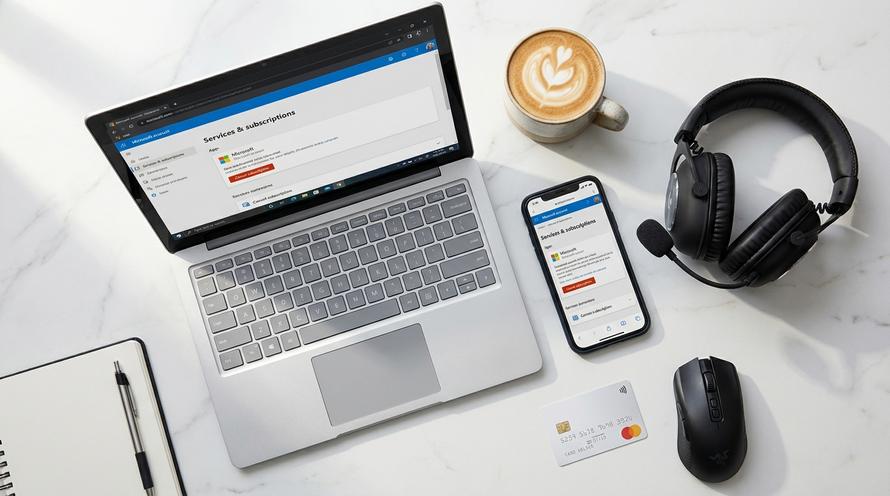
Whether your gaming backlog is piling up or you’re looking to trim your budget in 2026, cancelling your Xbox Game Pass subscription is a straightforward process. The key to both ending your subscription and requesting a refund lies within your Microsoft account management dashboard. This guide will walk you through every step, explaining how to manage your subscription on any device and what you need to know about getting your money back. Before you cancel, it’s worth double-checking what’s included with an Xbox Game Pass subscription to make sure you won’t miss out on any perks you’re still using.
Summary
This guide provides step-by-step instructions on how to cancel your Xbox Game Pass subscription on a PC, console, or mobile device. You’ll learn the difference between turning off recurring billing and cancelling immediately, how to manage different subscription tiers like Ultimate and Core, and the process for requesting a refund. We also cover Microsoft’s refund policy and answer frequently asked questions about refund times, cancelling without login details, and contacting support in Australia.
TLDR
- To cancel your subscription, you need to log in to your Microsoft account at account.microsoft.com.
- Navigate to the “Services & subscriptions” page to find your Xbox Game Pass plan.
- Select “Manage” and then choose either “Cancel subscription” or “Turn off recurring billing”.
- You may be eligible for a refund for your most recent charge if you cancel within 30 days of the payment. If so, an option to “Cancel immediately and get a refund” will appear.
- The process is the same for all tiers, including Game Pass Ultimate and Game Pass Core.
📑 Table of Contents
How to Cancel Xbox Game Pass on Different Devices
No matter where you prefer to game, cancelling your Xbox Game Pass subscription always leads back to your central Microsoft account. While you can start the process from your console, the most direct way is through a web browser on a PC or phone. Below, we break down the steps for each platform to help you manage your Xbox subscription with ease.
Cancelling via PC (Web Browser)
Using a web browser on your computer is the most reliable method for cancelling your Xbox Game Pass subscription. It gives you full access to all your account management options in one place.
- Navigate to the official Microsoft account page: account.microsoft.com.
- Sign in using the email address and password associated with your Xbox profile.
- Once logged in, look for and click on the “Services & subscriptions” tab at the top of the page. This will display all active and expired Microsoft subscriptions tied to your account.
- Locate your Xbox Game Pass subscription (e.g., Game Pass Ultimate, Game Pass for PC, or Game Pass Core) and click the “Manage” link next to it.
- On the next page, you will see details about your subscription. Click on “Cancel subscription”.
- Microsoft will present you with one or two options. You can either “Turn off recurring billing” to let your subscription expire at the end of the current period, or “Cancel immediately” which may come with an offer for a partial refund. Follow the final on-screen prompts to confirm your choice.
How to Cancel Without Login Details
If you’ve lost your Microsoft account login details, you’re not completely stuck. Your first step should be to try the account recovery process on the Microsoft login page. You can use a linked phone number or backup email address to regain access. It’s crucial to recover your account, especially if you think your account details were compromised. If you cannot recover your account by any means, your final option is to contact your bank or credit card provider and ask them to block the recurring payments from Microsoft.
Cancelling via Console (Xbox Series X/S or Xbox One)
You can also manage your subscription directly from your Xbox console. The pathway is simple and takes just a few clicks of the controller.
- Press the Xbox button on your controller to open the guide.
- Navigate to Profile & system > Settings > Account > Subscriptions.
- Select your Xbox Game Pass subscription from the list.
- Here you will see an option to Turn off recurring billing. Select this and follow the on-screen prompts to finalise the cancellation.
Cancelling via Mobile Phone or App
While the official Xbox app on your phone is great for social features and remote game installs, it doesn’t offer a direct way to cancel your subscription. The app will direct you to manage your subscription in a web browser. Therefore, the process for cancelling on your phone is identical to cancelling on a PC: open your preferred mobile web browser, go to account.microsoft.com, log in, and follow the same steps outlined in the PC section above.
Managing Specific Xbox Subscriptions
Xbox Game Pass comes in several tiers, from Core (the new version of Xbox Live Gold) to the all-inclusive Ultimate. While the benefits of each tier vary, the good news is that the cancellation process is exactly the same regardless of which one you have. You simply follow the steps above to find and manage your specific subscription.
Cancelling Xbox Game Pass Ultimate
⚠️
Heads Up! Cancelling your Game Pass Ultimate subscription means you will lose access to several key benefits at the end of your billing period. This includes the game libraries for both console and PC, online multiplayer, cloud gaming (xCloud), and your included EA Play membership.
Cancelling Xbox Game Pass Core (Formerly Live Gold)
If you’re a long-time Xbox gamer, you might still be looking for how to “cancel Xbox Live” or “cancel Xbox Gold”. Microsoft has rebranded its base online multiplayer subscription, so what you’re looking for now is Xbox Game Pass Core. The process to cancel this subscription is identical to any other Game Pass tier.
- Xbox Live Gold
- The legacy subscription service required for online multiplayer on Xbox consoles.
- Xbox Game Pass Core
- The new name for the base subscription as of late 2023. It includes online multiplayer and access to a curated library of over 25 high-quality games.
How to Request an Xbox Game Pass Refund
After successfully cancelling your subscription, your next question is likely about getting a refund. Microsoft has a specific refund policy for subscriptions, and in many cases, the process is automated. Here’s what you need to know about getting your money back.
Microsoft’s Xbox Subscription Refund Policy
Microsoft’s standard refund policy for subscriptions is quite clear and generally user-friendly. Understanding it can help you know what to expect when you cancel.
📜 The 30-Day Rule: You are generally entitled to an Xbox refund for your most recent recurring billing charge if you cancel your subscription within 30 days of the payment. This applies only if you haven’t significantly used the service during that time.
Additionally, under Australian Consumer Law, you may be entitled to further remedies or refunds if the service is faulty, not fit for purpose, or doesn’t match its description.
Step-by-Step Guide to Submitting a Refund Request
For most eligible users, the refund process is integrated directly into the cancellation steps. If not, there’s a manual form you can use.
- Go back to the “Services & subscriptions” page on your Microsoft account.
- Click “Manage” next to your Game Pass subscription.
- When you select “Cancel subscription”, if you are eligible for a refund according to the policy, you will see an option that explicitly says “Cancel immediately and get a refund”. Selecting this will automatically process the refund for your last charge.
- If you don’t see this option but believe you are entitled to a refund (for instance, if your child made an unauthorised purchase), you will need to fill out the Xbox Refund Request web form. You can find this by searching for “Request a refund for a digital game” on the Xbox support site. While it’s aimed at games, it can be used for subscription issues as well.
Frequently Asked Questions (FAQ)
How long do Xbox refunds take?
Once Microsoft approves and processes your refund, it typically takes 3 to 5 business days for the funds to appear back in your bank account or on your credit card. However, this timeframe can sometimes be longer depending on your financial institution’s processing times.
How do I turn off recurring billing on Xbox instead of cancelling?
Turning off recurring billing is a great option if you want to use the service until the very last day you’ve paid for. It prevents any future charges but allows your subscription to remain active until its expiry date. You can find this option in the same place as the cancellation button: log into account.microsoft.com, navigate to “Services & subscriptions”, click “Manage” on your Game Pass plan, and select “Turn off recurring billing”.
How do I get a refund on digital Xbox games?
Refunding digital games has a different policy. Generally, you can request a refund for a digital game purchase within 14 days, provided you have not accumulated significant playtime (typically less than 2 hours). To submit a ticket, you need to go to the Xbox Support website and find the “Request a refund for a digital game” page, sign in, and select the game you wish to refund from your order history.
How do I contact Xbox Support in Australia?
If you need to speak with someone, the best way to contact Xbox Support is through their official support portal. They have a “Contact Us” section where you can describe your issue. For many problems, they offer a callback feature. You can enter your phone number, and an Xbox support agent will call you directly, saving you from waiting on hold. There is no direct public Microsoft contact number in Australia for general Xbox support; you must go through the web portal.
How do I delete my Microsoft account entirely?
🛑 Extreme Caution Advised: Deleting your Microsoft account is a permanent and irreversible action. This will delete everything associated with it, including your Xbox gamertag, all purchased games, saved progress, achievements, remaining account balance, and access to other Microsoft services like Outlook, Skype, and OneDrive. If you are certain, you can find the option by going to the Microsoft account closure page and following the security verification steps.
Written by
Ruby Walker
